Operators · Screen guide
Overview dashboard
Landing screen after login (#/{orgSlug}). Clear the attention queue before opening Bookings or Dispatch.
First look
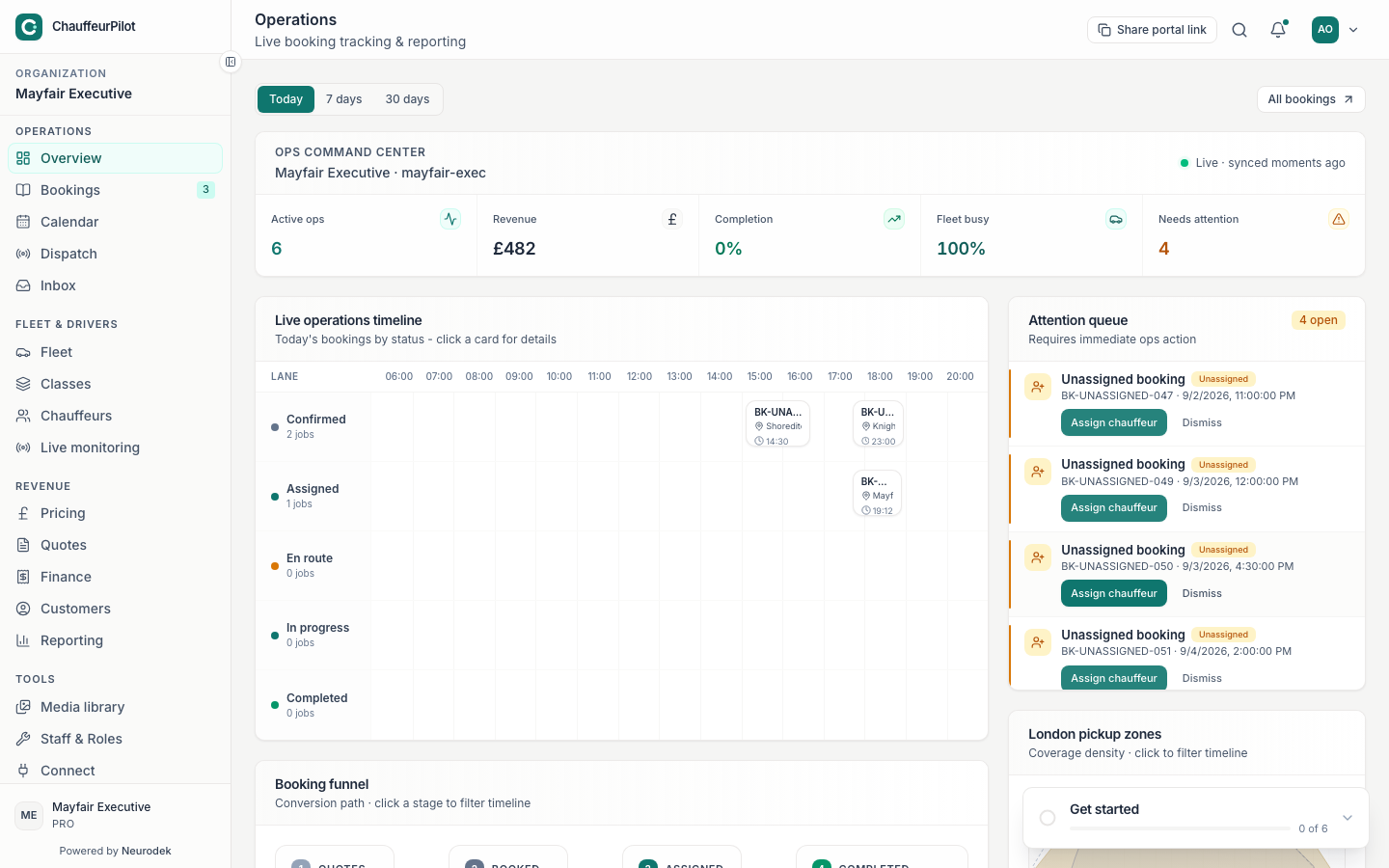
- Attention queue
- Unassigned jobs, pending confirmation, payment issues, and other items that need an operator now. Work top-down each morning; empty queue means you can focus on schedule quality.
- Queue row / card click
- Opens the booking detail drawer without leaving Overview.
- Utilisation / fleet pulse widgets
- How busy chauffeurs are in the selected period — capacity signal before you accept more airport peaks.
- Funnel metrics
- Quote → book → complete conversion style stats for the period (wording varies by plan).
Booking detail drawer
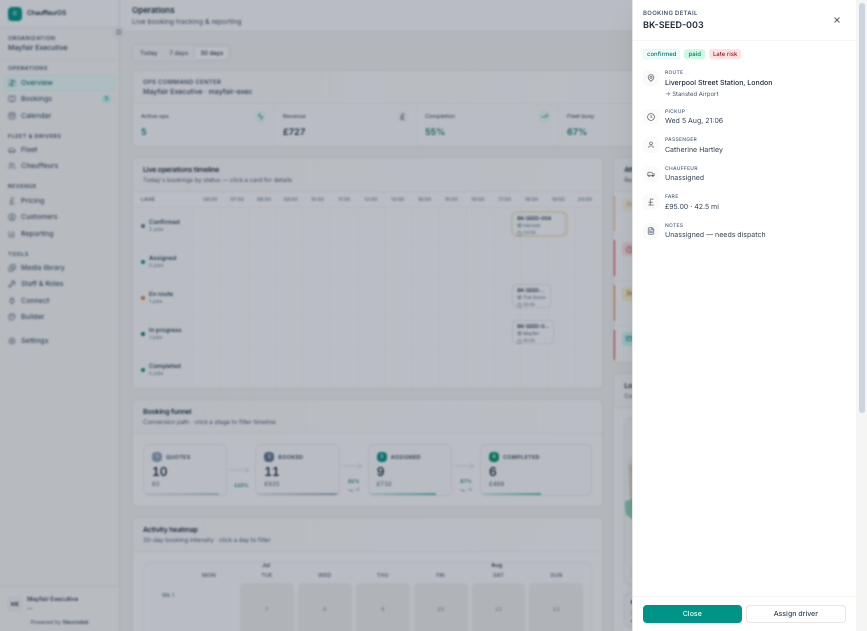
- Assign / status from drawer
- Same actions as Bookings detail — assign chauffeur, advance status, open full page.
- Open full booking
- Jumps to Bookings with
?id=for deeper edits (notes, route changes).
Period tabs
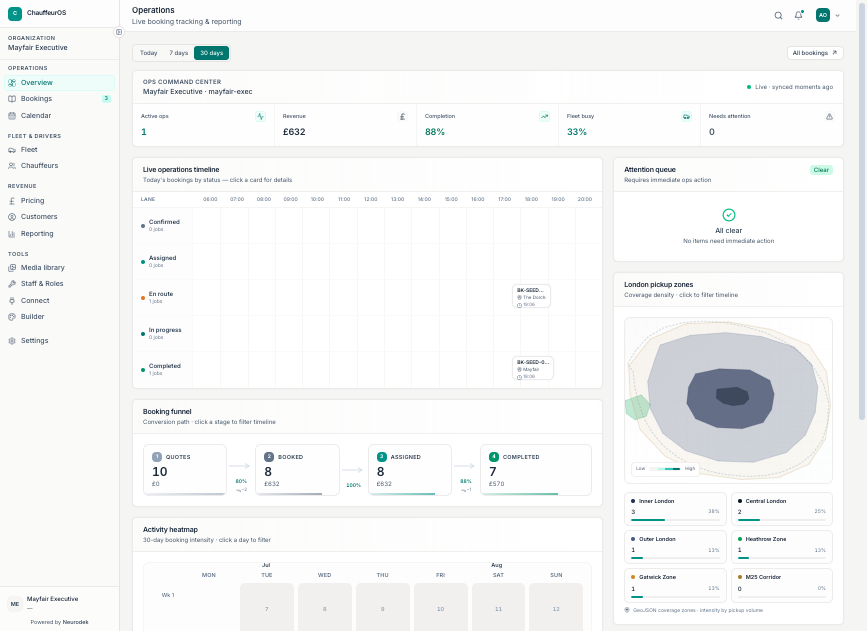
- Today / 7d / 30d (and similar)
- Rescopes charts and counts. Use longer windows when judging utilisation trends, not for same-day dispatch.
- Full-width 30d view
- Larger chart canvas for weekly patterns.
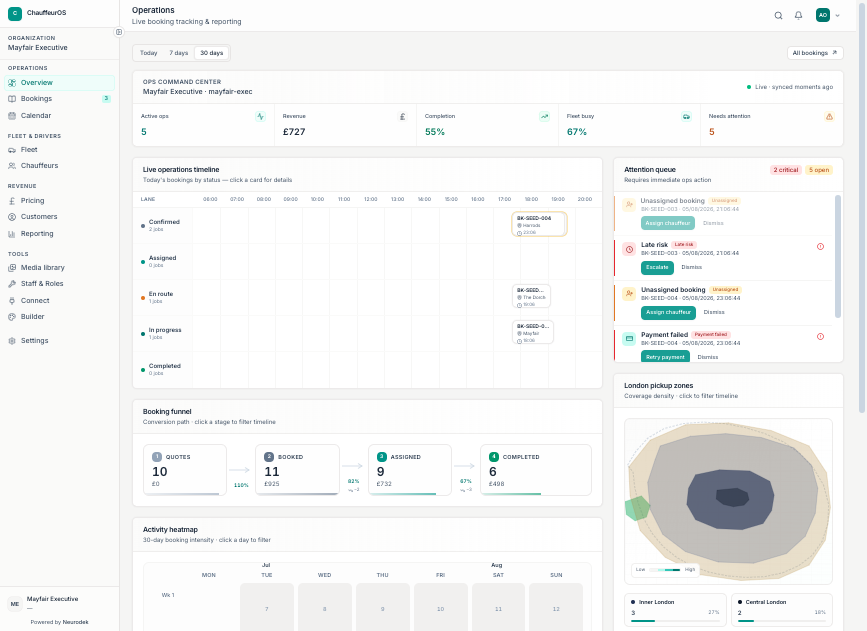
Timezone for “today” comes from Settings → Organization.