Operators · Screen guide
Dispatch board
Peak-hour ops surface at #/{orgSlug}/dispatch. Create a job, read fleet pulse, and assign from the job grid without leaving the screen.
Board layout
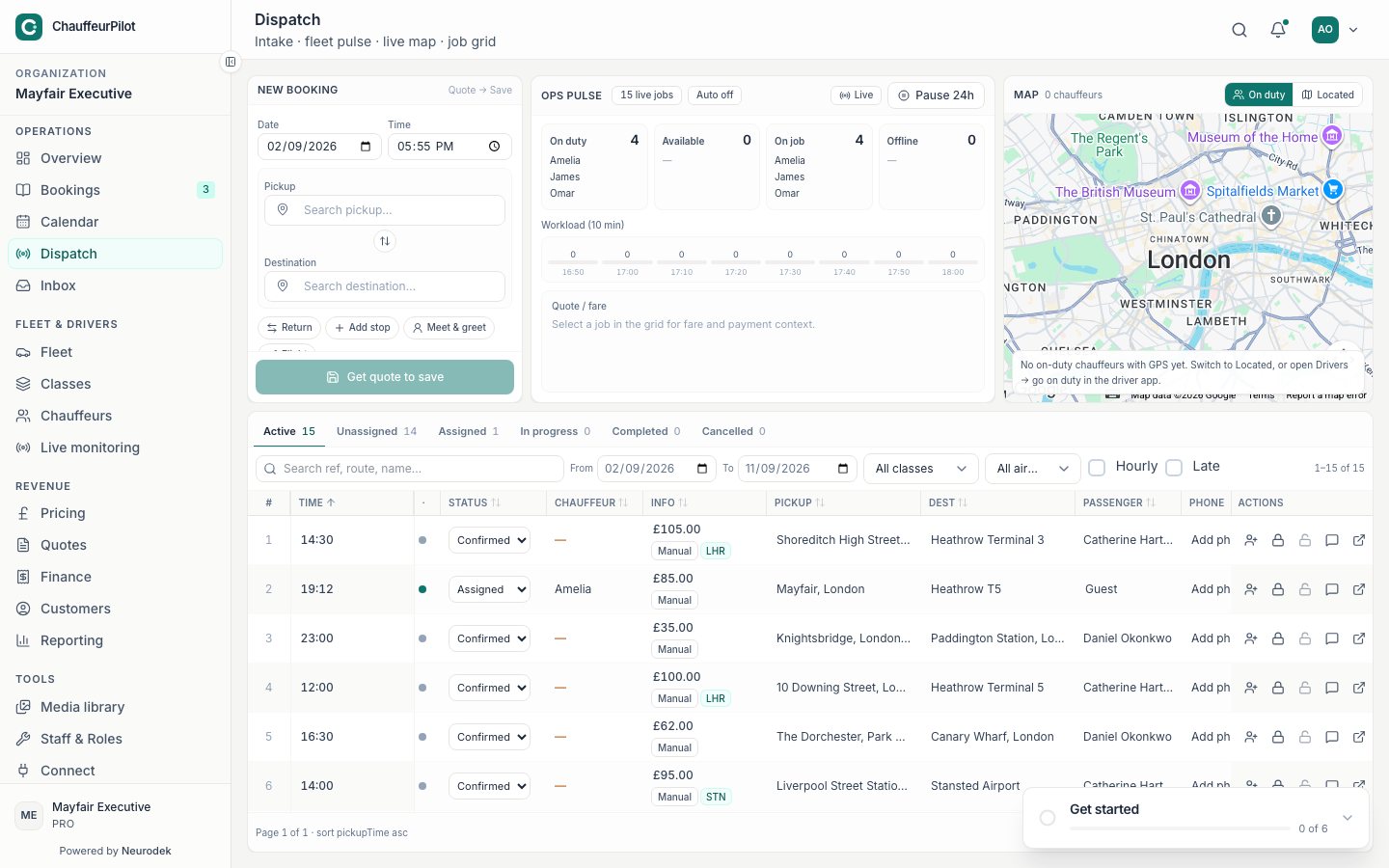
- Left — New booking / Intake
- Phone-booking form for same-day capture.
- Centre — Fleet / ops pulse
- Live counts and workload chart.
- Map
- On-duty chauffeurs with GPS when available.
- Job grid
- Tabular Active / Unassigned / Assigned work list with inline assign.
New booking (intake)
- Date & time
- Pickup timing in org timezone.
- Pickup / destination
- Address fields with place suggestions where Maps is configured.
- Return / stops / meet & greet
- Optional trip structure toggles for complex jobs.
- Passenger details
- Name and phone minimum for chauffeur contact.
- Vehicle class
- Must be bookable; pricing uses published rates.
- Get quote to save
- Prices via published engine, then creates the booking — faster than Bookings → New for phone ops. Draft-only pricing changes will not affect this quote until Publish.
Fleet pulse
- Live job count
- How many jobs are in play right now.
- On-duty / available / on-job
- Chauffeur states from the driver app. Available means on duty and not on a job.
- Workload chart
- Short-horizon load — decide auto vs manual assign.
Live map
- Chauffeur pins
- GPS positions for on-duty drivers. Empty state usually means nobody on duty or location denied.
- Job pins (when shown)
- Pickup context relative to fleet.
If the map says “No on-duty chauffeurs with GPS”, drivers must go on duty in the chauffeur app with location enabled. See Live monitoring.
Job grid
- Active / Unassigned / Assigned tabs
- Filter the grid to the pile you are working.
- Search & URL filters
- Same persistence idea as Bookings — shareable filtered views.
- Chauffeur cell
- Assign or reassign from the row.
- Status cell
- Advance lifecycle inline; invalid transitions blocked.
- Open booking
- Full detail when the row is not enough.