Operators · Screen guide
Calendar
Schedule surface at #/{orgSlug}/calendar. Use week for load balancing; day panel for per-job detail without leaving context.
Views & navigation
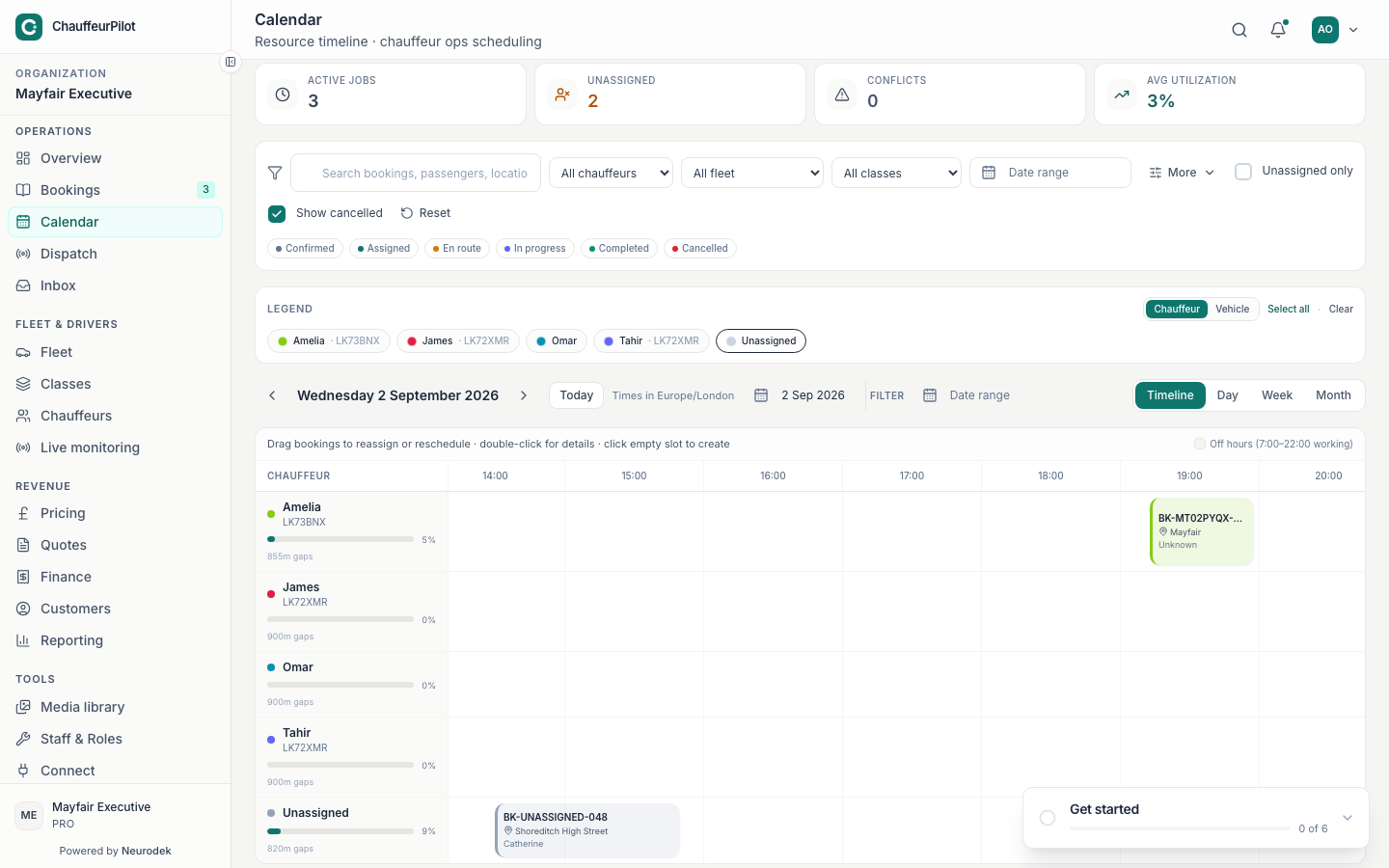
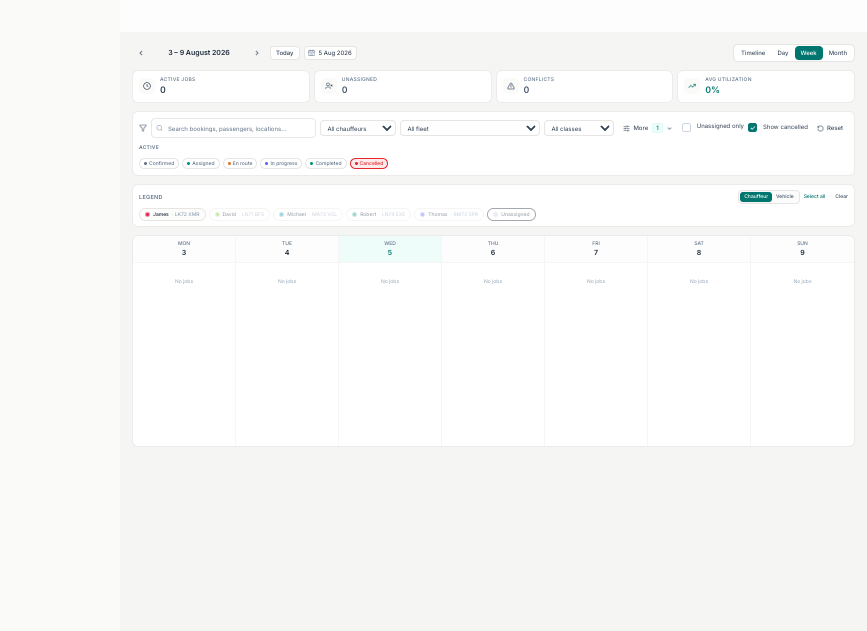
- Day / Week / Month tabs
- Changes density. Day is operational; Week spots clashes; Month is planning / overflow.
- Prev / Next / Today
- Move the visible window. Today jumps using org timezone.
- Chauffeur / class filters
- Isolate one driver or vehicle class when balancing load. Leaving a chauffeur filter on and thinking the day is empty.
Week view
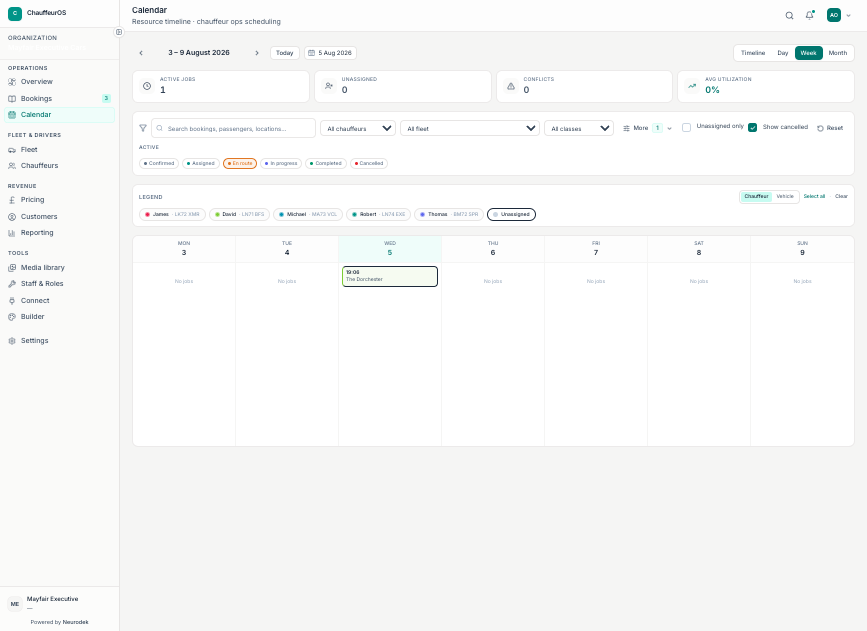
- Day headers
- Click a day header to focus that day / open the day panel.
- Job blocks
- Timed bars for pickups. Colour / chips reflect status or chauffeur depending on view settings.
- Overflow indicators
- Month/week cells may show “+N more” when dense — open day panel to see the rest.
Day panel
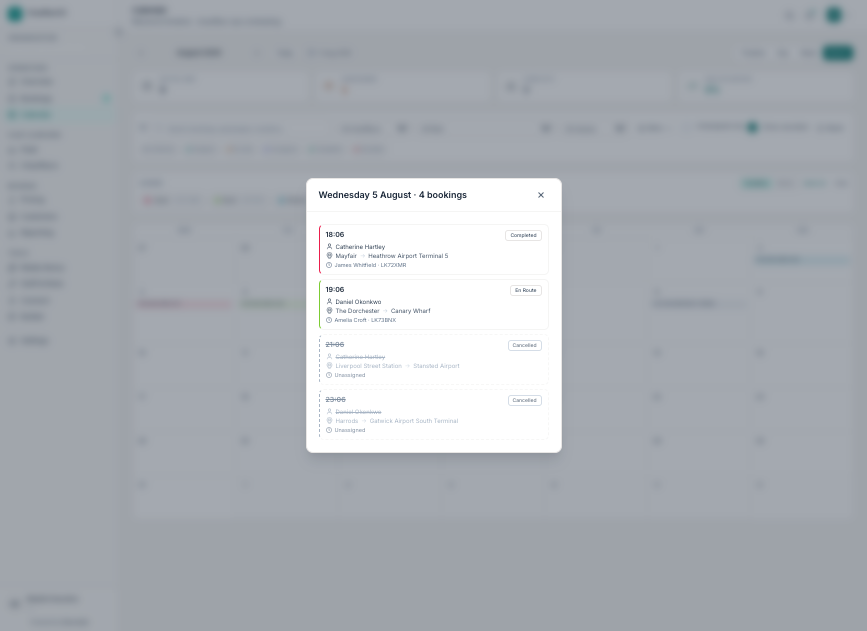
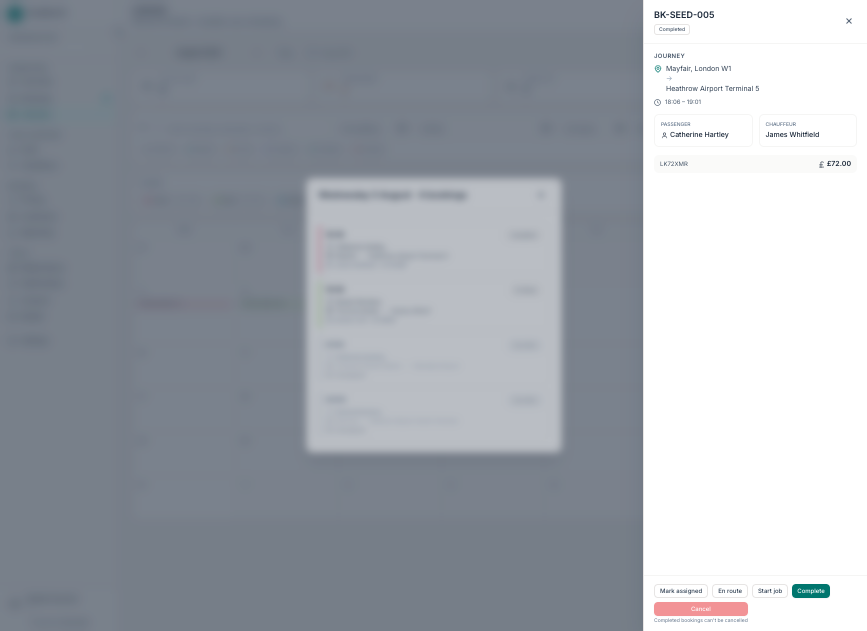
- Job list for the day
- Ordered by pickup time. Select a row for detail.
- Detail pane
- Route, chauffeur, status — assign or open full Bookings page.
- Cancelled visibility
- Cancelled jobs can appear for audit; hide via filters if they clutter planning.